A first-time user must create a new login password and enter new security information when logging in.
To log in as a new user (first time):
1. Start a web browser application, such as Chrome, Edge, Firefox, or Safari.
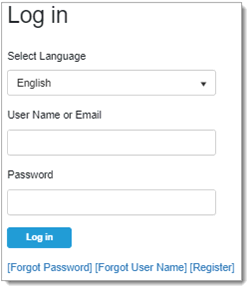
2. Click on the URL for AnjuEDC in the email notification you received from TrialMaster or type in the URL in your browser.
The AnjuEDC Log in page displays.
3. If you want to select another language, select it from the Select Language drop-down list. Depending upon the TrialMaster environment you are accessing, you may see additional languages other than English. When you navigate into a trial you have access to, the language defined for your user in AnjuEDC displays. If the language defined for your user is not configured for a particular trial, your language is set to the default language configured for that trial.
 Notes:
· If you have permissions, you can change your language while in TrialMaster.
· If the translation database is down, English is the only language selection and a message displays at the top of the page, indicating that the language selection is currently unavailable and the application will display in English for the time being. (This only affects those studies which have been set up for translation. For studies not set up for translation, the message does not display.)
4. Enter your User Name/Email address (if not already populated).
5. Enter the one-time temporary Password.
Note: After you click in the Password
field, if you are configured for Single Sign-on (SSO), the SSO authentication
page displays where you must enter your password and sign in. Once
your login credentials are successfully authenticated, no additional log
in steps are required.
6. Click the Log in button.
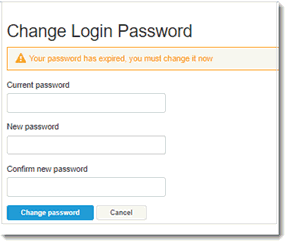
The Change Login Password page displays.
7. Enter the one-time, temporary password in the Current Password field.
8. Enter your New password. (Refer to Password Rules when entering your password.)
9. Confirm the password by entering again in the Confirm new password field.
10. Click the Change password button.
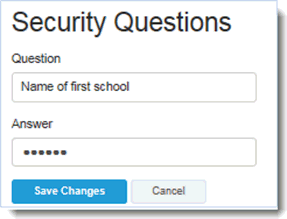
The Security Questions page displays.
11. Enter a secret question in the Question field. (You can enter up to 255 characters. It is strongly recommended to pick a very unique and personal question and answer.)
12. Enter the answer to the secret question in the Answer field. (Again, you can enter up to 255 characters.)
13. Click the Save Changes button and do one of the following:
· If you are a TrialMaster only user with access to a single trial, the TrialMaster application opens where you can view the trial.
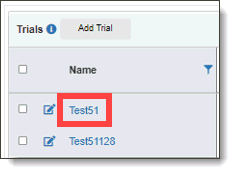
· If you are a TrialMaster only user with access to more than one trial, the AnjuEDC application opens. Click on the applicable trial name from the Trials page to view the trial in TrialMaster.
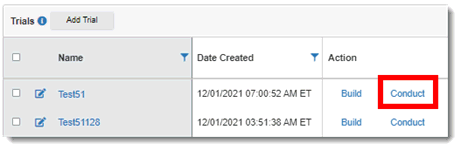
· If you are an Organization Admin user or other user with TrialMaster and TrialBuilder access, the AnjuEDC application opens. Click the Conduct link under the Action column of the Trials page to view the trial in TrialMaster.
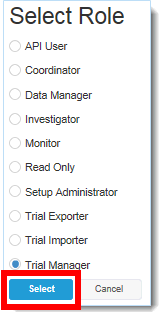
14. If applicable, select your role and then click the Select button in the Select Role page. The home page for the role you selected displays. If only one role is assigned to you, the home page displays automatically.